|
Installing on an additional workstation (Citrix)
Technically, no software is installed on the additional workstation, but you do need to verify that the user has proper permissions on the SQL Server.
If this is a new user to Treasury Software - confirm their security permissions on the SQL server with your database administrator (as below):
Enter into SQL Server Management Studio.
Select Security (at the server level). Select 'Login'. Confirm the existence of the user's ID.
If there is no login, please create one now.
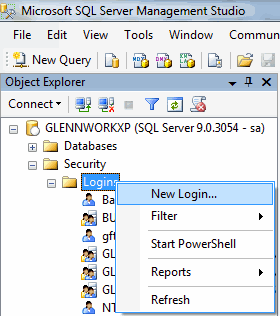
To add a login, right click on 'Login' and select 'New Login'.
Enter the user's login name and complete the security options per your corporate environment.
1. Select the User Mapping's page
2. Check the databases they need access to. Note: Always grant access to the 'Sample' database.
3. Make sure that the role 'BankRecPosPayUsers' is checked
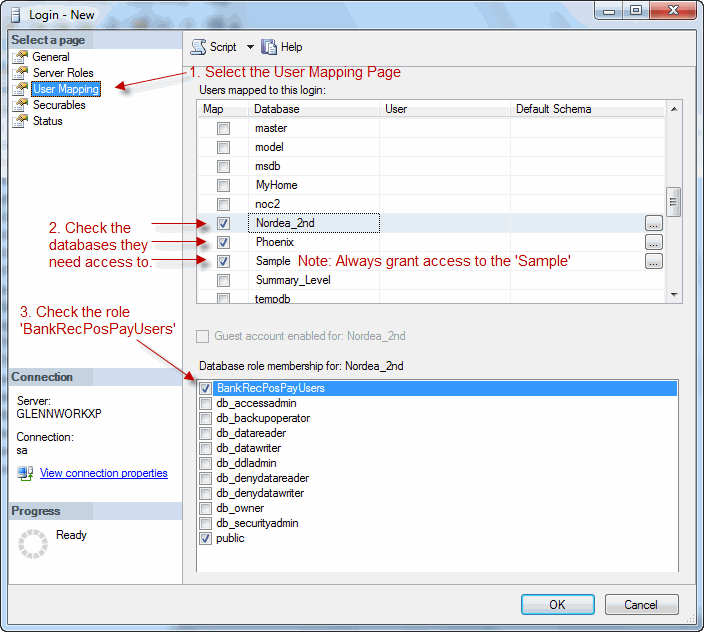
Click OK when finished.
Start Treasury Software through the published Citrix client.
1. Add accounts as appropriate.
From the main menu select 'File' > 'New Account' > 'Add an Existing Account'. Select the accounts that the user should be able to see on their list of accounts.
Note: You will be prompted to enter a SQL Server system administrator level id and password.
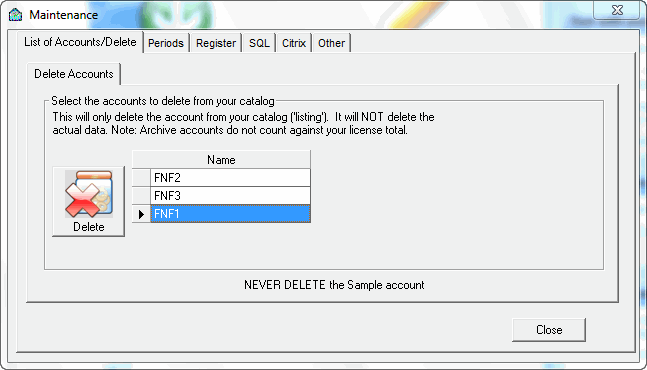
2. Remove accounts as needed
Depending when the system was 'published' within Citrix, certain accounts
may already be on the new user's account listing.
To remove these accounts - From the top menu select the 'Settings' tab > 'Maintenance' > 'Delete Accounts'.
Note: If you are using a version prior to 2013.
From the main menu select
'File' > 'Maintenance'
|