|
Move SQL Server databases from one server to another
Overview
Prepare and backup your databases on the old server.
Move the databases from the old server to the new server.
Confirm user logins and permissions on the new server
Rollout - Point the user's workstations to the new server.
Note: The following instructions involves advanced knowledge of SQL server, and requires the support of your IT department.
Prepare and backup your databases on the old server.
1. Transmit any untransmitted ACH transactions in ACH Universal.
Exit the software.
2. Backup the current SQL databases per your corporate policies.
Move the databases from the old server to the new server.
1. Detach the databases
2. Copy/move the databases to the new server.
Yes, also copy/move
the 'Sample' database.
3. Attach the databases on the new server.
For detailed
assistance with the above three steps, see Moving SQL Databases for System Administrators.
4. Grant security permissions to the newly mounted databases. Make
sure that you have proper login IDs and have granted permission
to the BankRecPosPayUser group in each database.
Confirm user logins and create permissions on the new server
Confirm the user's login on the SQL server with your database administrator (as below):
Enter into SQL Server Management Studio for the new server databases that you just attached.
Select Security (at the server level). Select 'Login'. Confirm the existence of the user's ID.
If there is no login, please create one now.
To add a login, right click on 'Login' and select 'New Login'.
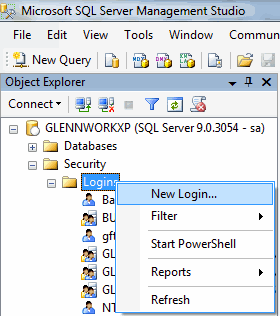
Enter the user's login name and complete the security options per your corporate environment.
For all users - you will need to grant permissions to the databases that you just attached.
--Select the User Mapping's page
--Check the databases they need access to. Note: Always grant access to the 'Sample' database.
--Make sure that the role 'BankRecPosPayUsers' is checked
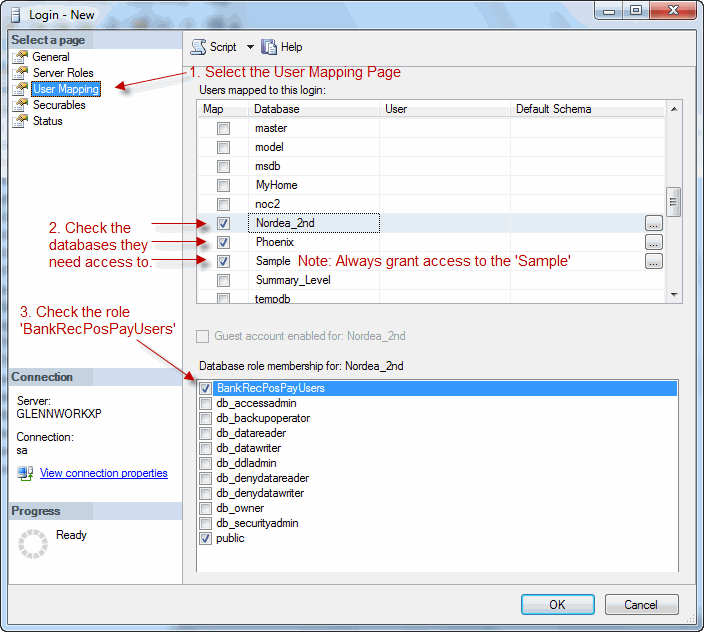
Click OK when finished.
--Enter into an account. From the Ribbon Bar select the Settings tab > Maintenance > SQL Tab > Connection sub-tab (default). On the right half of the panel - click the link 'Reset Connection from SQL to Desktop (brd)'.
Note: If you are using our legacy main menu - the Maintenance window can be accessed at File > Maintenance.
--Exit and then re-enter into software. Select an account.
--From the Ribbon Bar select the Settings tab >'Migrate to SQL Express, SQL Server' to start the wizard. During the wizard, you will be prompted to enter the new server and, if needed, your credentials.
Note: If you are using our legacy main menu - select File > Migrate To SQL.
--Exit and then re-enter into software.
--From the Ribbon Bar select 'File' > 'New Account' > 'Add an Existing Account'. Select the accounts that the user should be able to see on their list of accounts.
Note: It is possible that the user does not have browse permissions to see the list of accounts. If this is the case, you can simply type in the name of the accounts one at a time as below.

Tips:
The #1 issue in any upgrade is security.
--Make sure that you have a system administrator login ID before
starting
--Create/arrange for logins for all users
--Confirm that the BankRecPosPayUser group has been granted rights
to each database
and
--Confirm that each user has permission to the 'Sample' database. Do not delete or compress this database.
Congratulations!
Alternate approaches:
Export data to a pass thru file and then re-import it into the target database.
|