|
Upgrading your version (Citrix)
Licensing
Contact Treasury Software for licensing information prior to performing
the steps below, as your existing license codes may not work with
the new software.
Backup your databases.
1. If using ACH Universal or Bank Positive Pay, first create output
files for any untransmitted records. Exit the software.
2. Backup the databases per your corporate procedures.
Install the new version of Treasury Software
and connect to the server.
3. Download the latest version of Treasury Software from the link
below and save on a network drive.
http://www.treasurysoftware.com/download.aspx
4. Install the software on a workstation (make sure that you have administrator rights to the computer).
a. Follow the step-by-step instructions at SQL Server Version Upgrade starting at step #5.
b. While still logged on locally to the Citrix server, start Treasury
Software and enter into the Sample Account.
From the top menu select 'Settings' tab > 'Maintenance' > 'Citrix'.
Note: If you are using a version prior to 2013. Select 'File' > 'Maintenance' > 'Citrix'. Check
the box. Exit and re-enter the software.
Publish the application per your corporate guidelines.
Recommendation: Publish this as a different application from the original version. This will enable your users to test and confirm results of the new version before fully cutting over.
FAQ - What does step 2b do? What is the
Catalog of accounts?
In non-Citrix scenarios, when a user starts Treasury Software, the system looks to the installation directory for the accounts.brd file, typically at c:\Program Files\Treasury Software\version xxxx\accounts.brd.
This file contains a catalog of accounts. This file is specific to a user, and can not be used concurrently.
When the system is 'switched' to Citrix-mode in step 2b, the system protects the accounts.brd from being accessed.
As each user starts Treasury Software for the first time, the system creates an accounts.brd for that individual, and it is placed in the \users directory.
The users directory will either be below the Program Files\Treasury Software tree (Windows XP), or in the Users\Public\Treasury Software tree (Vista, Windows 7, Windows 8).
Note: The accounts.brd file is appended with their login id.
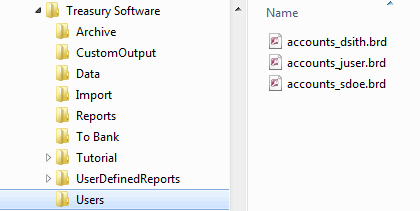
Therefore, if an account is added to John User's catalog within Treasury Software (File > New), it will added to his catalog of accounts (accounts_juser.brd) - but it will not be added to any other users.
5. Add accounts as appropriate.
From the main menu select 'File' > 'New Account' > 'Add an Existing Account'. Select the accounts that the user should be able to see on their list of accounts.
Note: You will be prompted to enter a SQL Server system administrator level id and password.
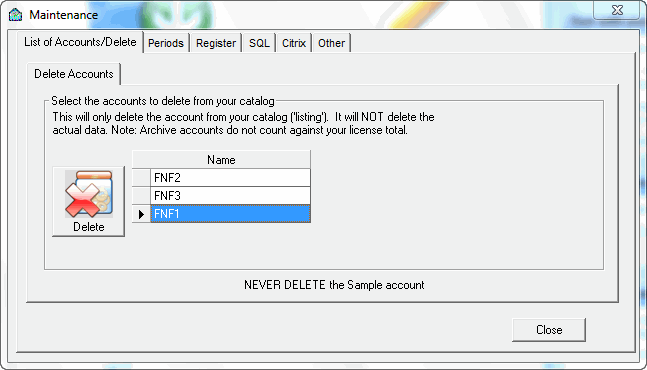
6. Remove accounts as needed
Depending when the system was 'published' within Citrix, certain accounts
may already be on the new user's account listing.
To remove these accounts - from the main menu select
File > Maintenance
|