Treasury Software allows for three methods of automation. Please see directly below for SQL automation. If you prefer kicking the automation off from a command line or the Windows Task Scheduler either scroll down or click here.
This section is devoted to accounting software developers and other third party developers (including end-users) who are looking to integrate Treasury Software applications into a seamless and automated process for their users.
Our Software Integration Kit (SIK), unlike most automation development kits, is included directly in the runtime edition - and is available to both power users and software developers in a Graphical User Interface.
Treasury Software's SIK includes full automation tools to seamlessly:
Import any file
and, of course
Note: The Software Integration Kit is referenced as the 'Custom Import Menu Setup' in some documents - and will be used here interchangeably.
To access the Software Integration Kit (formerly called Custom Import Menus), from the Automation tab select Software Integration Kit.
Note: If you are using a version prior to 2013. From the main menu select Automation > Advanced - Software Integration Kit

You can have up to 20 integration routines per account. Select one that is not being used and click 'Add/Edit'.
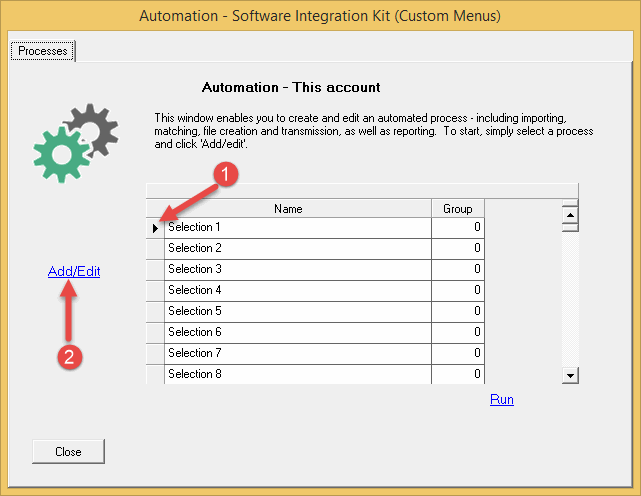
While Treasury Software products are easy to use from the user interface, we realize that many clients want to automate the process.
Our Software Integration Kit (SIK) enables you to automate the import, file creation and transmittal processes.
No programming is required!
1. Activate a selection.
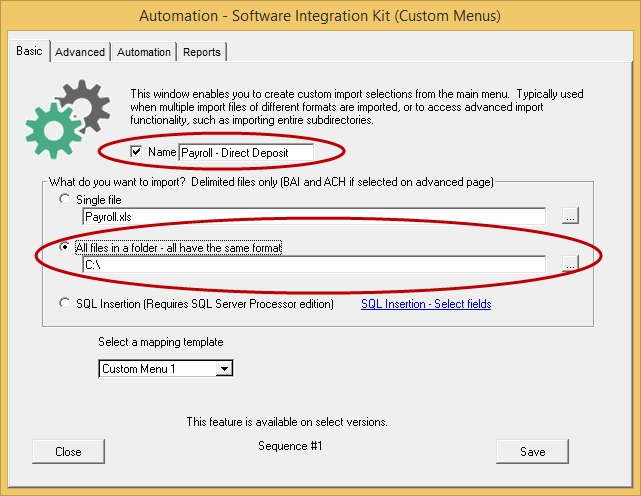
The entire setup is performed from within the program (main menu > 'Automation' > 'Advanced - Software Integration Kit'). Next, select an existing entry and select Add/Edit.
Check the 'Active' box and give it a name. Select the file or the directory that the import files will be located in.
2. Archiving (advanced) - preserving the Audit Trail.
After the files are imported - the system can move them to a different directory to preserve the audit trail.
Remember: Our software will copy your files to the archive directory. If your file names don't change, we will simply be over-writing the existing files - which is not a good audit trail.
Therefore, take advantage of our ability to make the file names unique. Our software can append the date-time to the file names - making the file names unique. That way, when they are moved to the archive folder, your audit trail is preserved.
3. Automation Processes
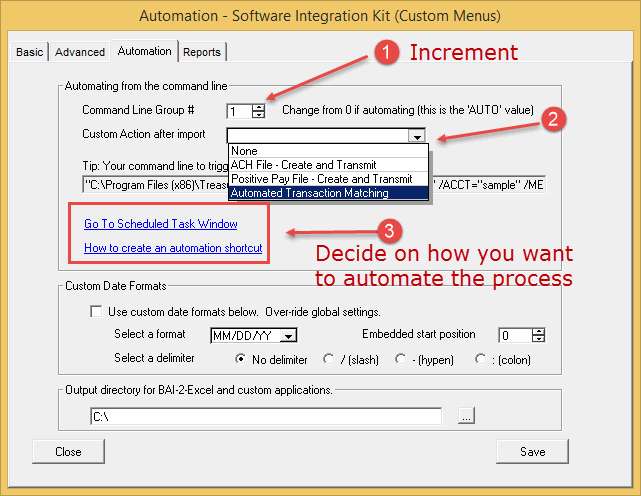
After importing and archiving the files, the system can trigger the file creation process.
If a custom action is not selected, the system will simply import and archive the files without creating and transmitting the file.
SSH-FTP
Want to transmit your ACH file to your bank using SSH-FTP?
Please see our detailed check list at SSH-FTP.
Notes:
You can trigger the transmission from the Software Integration Kit or from a manual import file. SSH requires either a Corporate or Processor level license of ACH Universal.
4. Reporting a 'receipt' of activity
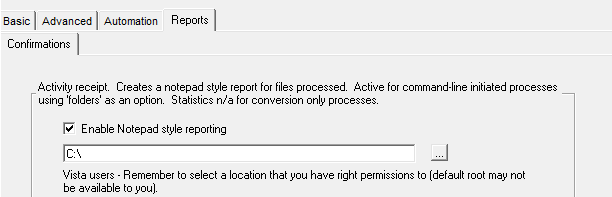
Want a written receipt of what happened during the process? Check the box for a linked summary of all the files.
Didn't check the box? The detail is always is available individually in the Import Logs.
Setup is now complete.
Three methods:
1. Scheduled - Set it to run as a scheduled task with your Windows Task Scheduler
Or - of course run it with any scheduler or batch command utility
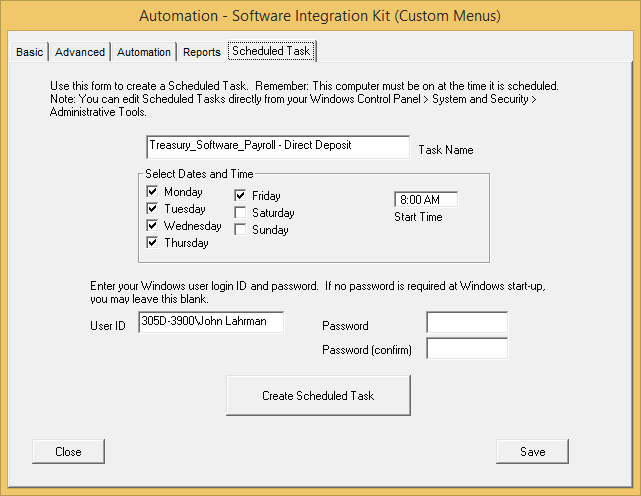
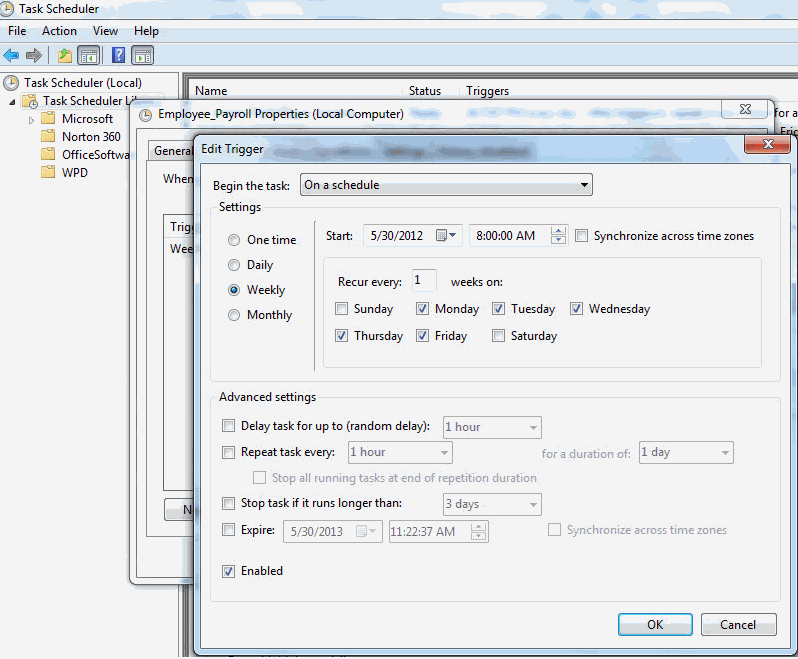
Have advanced needs?
Fully tweak the schedule from within Microsoft Windows Task Scheduler
2. Manual - As a desktop shortcut

Place the command line within a desktop shortcut and trigger it manually whenever you want.
3. Process - Within third-party software
Run the automation as part of another process. 'Shell-out' from any software application, or from any report generator and trigger ACH Universal.
'Geek notes':

 Customer Billing Portal




 (866) 226-5732

